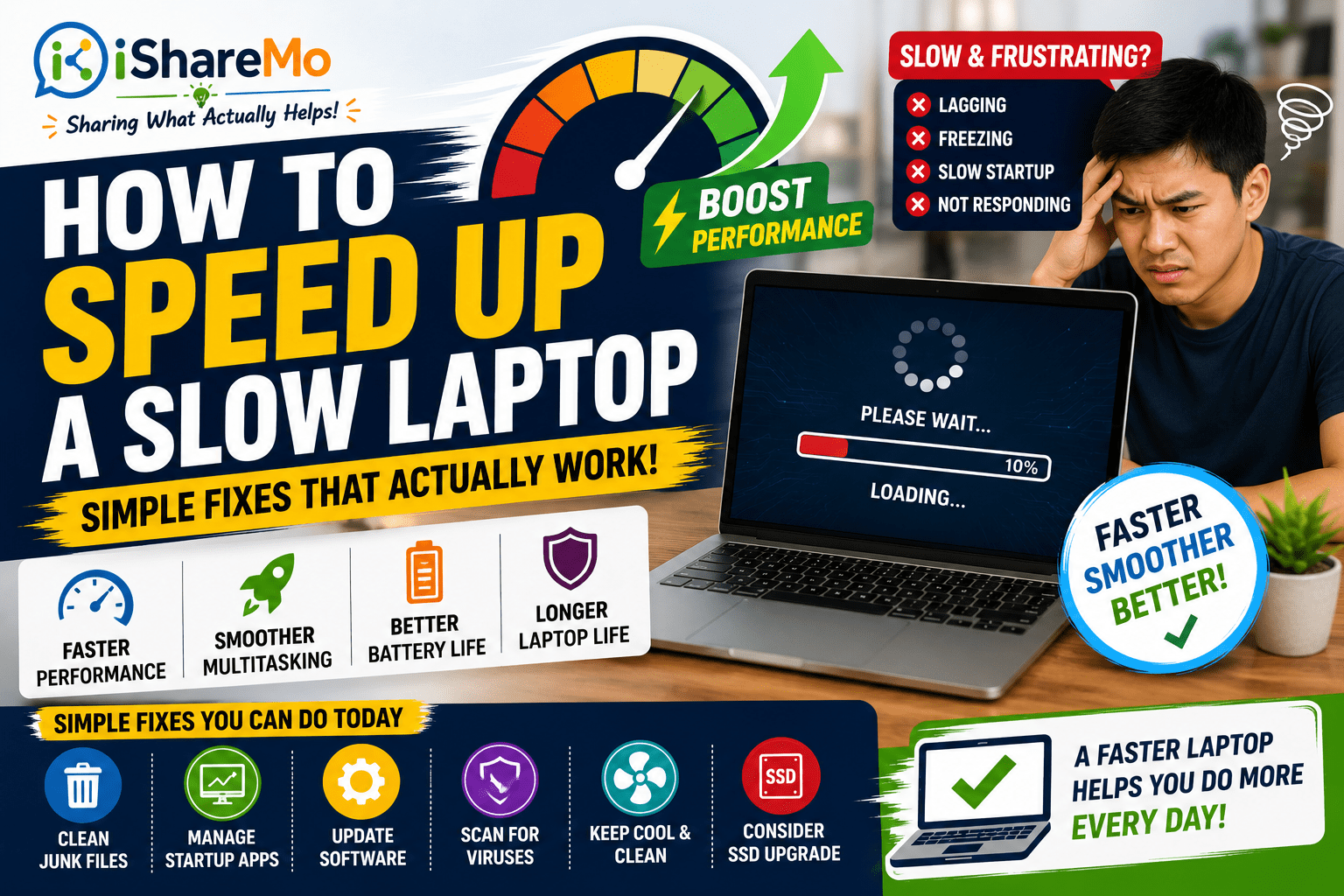
A slow laptop can become extremely frustrating, especially when simple tasks start taking too long to finish.
You open your browser, but it takes forever to load. You try to open a document, but the laptop freezes. You restart it, but the startup still feels slow.
This is a common problem for many students, employees, freelancers, business owners, and everyday users who rely on laptops for work, school, browsing, meetings, and online tasks.
The good news is this: a slow laptop does not always mean you need to buy a new one immediately.
In many cases, laptop performance becomes slower because of full storage, too many startup apps, background programs, outdated software, malware, overheating, or poor maintenance habits.
In this guide, you will learn how to speed up a slow laptop using simple and beginner-friendly fixes that you can try even without advanced technical knowledge.
Quick Summary
Learning how to speed up a slow laptop starts with finding what is causing the poor performance.
Most slow laptop problems are caused by too many background apps, low storage space, too many browser tabs, malware, outdated software, overheating, or old hardware.
Simple fixes like disabling startup programs, deleting unnecessary files, removing unused apps, updating your system, scanning for viruses, and cleaning your laptop can already improve speed.
For older laptops, upgrading to an SSD can also make a major difference.
At first, your laptop may feel fast and smooth. But after months or years of use, files, apps, updates, temporary data, and background processes start to build up.
Some apps continue running even when you are not actively using them. Some programs automatically open every time you turn on your laptop. Your storage may also become full because of downloads, videos, documents, screenshots, and duplicate files.
Heat can also affect performance. When your laptop gets too hot, it may automatically slow down to protect internal parts from damage.
How to Check What Might Be Slowing Your Laptop
For Windows users:
Press Ctrl + Shift + Esc to open Task Manager.
Click Processes.
Check which apps are using high CPU, Memory, or Disk.
If an app is using too many resources and you are not using it, select it and click End Task.
Be careful not to end important system processes that you do not recognize.
For Mac users:
Press Command + Space.
Search for Activity Monitor.
Open it and check CPU and Memory usage.
Look for apps that are consuming too many resources.
Close unnecessary apps properly.
This helps you understand whether your laptop is slow because of apps, memory usage, storage, or system activity.
Too Many Startup Programs Can Slow Down Your Laptop
One of the most common reasons laptops become slow is too many programs opening automatically when the laptop starts.
Apps like chat apps, cloud storage tools, launchers, update assistants, and other software may run in the background even if you do not need them immediately.
This makes startup slower and reduces available memory.
How to Disable Startup Programs on Windows
Press Ctrl + Shift + Esc to open Task Manager.
Click the Startup apps tab.
Look at the list of apps that open during startup.
Check the Startup impact column.
Right-click unnecessary apps.
Click Disable.
Restart your laptop and check if startup becomes faster.
You can usually disable apps like game launchers, unnecessary chat apps, or software you rarely use.
Do not disable antivirus software or important system tools unless you are sure they are not needed.
How to Disable Startup Apps on Mac
Click the Apple menu.
Go to System Settings.
Click General.
Select Login Items.
Remove apps you do not want to open automatically.
Restart your Mac.
This simple step can make your laptop feel faster during startup and normal use.
Low Storage Space Affects Performance
Storage space plays a major role in laptop performance.
When your laptop storage is almost full, the system has less space for updates, temporary files, browser cache, and normal operations.
This can cause freezing, slow file opening, delayed response, and poor overall performance.
How to Check Storage Space on Windows
Click the Start button.
Open Settings.
Go to System.
Click Storage.
Check how much space is used and how much is available.
Open categories like Temporary files, Apps, Downloads, or Documents.
Delete files you no longer need.
You can also use Disk Cleanup:
Search for Disk Cleanup in the Start menu.
Select your main drive, usually C:.
Check items like temporary files, recycle bin, and thumbnails.
Click OK.
Confirm deletion.
How to Free Up Storage on Mac
Click the Apple menu.
Go to System Settings.
Click General.
Select Storage.
Review recommendations.
Delete large files, unused apps, and unnecessary downloads.
Practical Files You Can Delete or Move
You can start with:
Old downloads
Duplicate photos
Old videos
Large installers
Unused apps
Screenshots
Files in the recycle bin or trash
Old school or work files you no longer need
For important files, move them to an external drive or cloud storage instead of deleting them.
Try to keep at least 15% to 20% of your storage free for smoother performance.
Unused Apps Can Make Your Laptop Slower
Many users install apps and forget about them.
Some unused apps still add background services, notifications, startup items, and update tools. These can consume system resources even when you are not using the app.
How to Uninstall Unused Apps on Windows
Open Settings.
Go to Apps.
Click Installed apps.
Sort by size or installation date.
Look for apps you no longer use.
Click the three dots beside the app.
Select Uninstall.
Follow the instructions.
How to Uninstall Apps on Mac
Open Finder.
Go to Applications.
Find the app you no longer need.
Drag it to Trash.
Empty the Trash if you are sure you no longer need it.
Before removing apps, make sure they are not important for your work, school, printer, antivirus, or system functions.
Too Many Browser Tabs and Extensions Can Cause Lag
Web browsers can use a lot of memory.
If you open many tabs at the same time, your laptop may slow down even if you are only browsing. This is especially true when tabs include videos, social media, online documents, dashboards, or streaming websites.
Browser extensions can also slow down performance because some of them run constantly in the background.
How to Fix Slow Browser Performance
Try these steps:
Close tabs you are not using.
Bookmark important pages instead of keeping them open.
Remove unnecessary browser extensions.
Clear browser cache.
Update your browser.
Restart the browser after cleaning.
How to Remove Extensions in Google Chrome
Open Chrome.
Click the three dots in the upper-right corner.
Go to Extensions.
Click Manage Extensions.
Remove extensions you do not use.
Restart Chrome.
How to Clear Browser Cache in Chrome
Open Chrome.
Click the three dots.
Go to Settings.
Click Privacy and security.
Select Delete browsing data.
Choose cached images and files.
Click Delete data.
You do not need to delete saved passwords unless you want to.
Simple browser management can make your laptop feel faster, especially if most of your work happens online.
Viruses and Malware Can Quietly Slow Your Laptop
Malware and suspicious software can make your laptop slow without obvious warning signs.
Some harmful programs run secretly in the background. They may use your processor, memory, storage, or internet connection.
Common signs include sudden lagging, random pop-ups, slow browser performance, overheating, unknown apps, and unusual background activity.
How to Scan for Viruses on Windows
Click Start.
Search for Windows Security.
Open it.
Click Virus & threat protection.
Click Quick scan.
Wait for the scan to finish.
Follow the recommended actions if threats are found.
For a deeper check:
Go to Scan options.
Choose Full scan.
Click Scan now.
A full scan may take longer, but it checks more files.
How to Avoid Malware
Follow these habits:
Avoid downloading cracked software.
Do not install apps from suspicious websites.
Be careful with fake “update” pop-ups.
Avoid clicking unknown email attachments.
Do not install browser extensions you do not trust.
Keep your antivirus protection enabled.
If your laptop became slow after installing a certain app, try uninstalling that app and running a virus scan.
Outdated Software Can Reduce Efficiency
Operating systems, browsers, apps, and drivers receive updates for security, stability, compatibility, and performance.
If you ignore updates for a long time, your laptop may experience bugs, crashes, or slow performance.
Many websites promote “PC cleaner” or “speed booster” apps that promise instant performance improvements.
Some are useful, but others may add more background processes, show ads, or even install unwanted software.
Safer Maintenance Habits
Instead of relying on random booster apps, use built-in tools first:
Windows Security
Disk Cleanup
Storage settings
Task Manager
Windows Update
Browser cleanup tools
For Mac, use built-in storage management and Activity Monitor.
If you want to install a cleaning tool, research it carefully and download only from official sources.
Create a Simple Laptop Maintenance Routine
Laptop performance problems usually happen slowly.
The best way to avoid major slowdowns is to follow a simple maintenance routine.
Weekly Maintenance
Do these once a week:
Restart your laptop.
Close unused browser tabs.
Delete unnecessary downloads.
Empty recycle bin or trash.
Check if storage is getting full.
Monthly Maintenance
Do these once a month:
Review startup apps.
Uninstall unused programs.
Run a virus scan.
Check for system updates.
Clean browser cache.
Organize important files.
Every Few Months
Do these every few months:
Clean laptop vents carefully.
Back up important files.
Move large files to cloud or external storage.
Check if your laptop is overheating.
Review apps and extensions again.
Small habits can help your laptop stay faster and last longer.
When Should You Consider Repair or Replacement?
Simple fixes can improve many slow laptop issues, but not all problems can be solved through software cleanup.
You may need professional help if:
Your laptop shuts down randomly.
It overheats even during simple tasks.
It makes unusual clicking or grinding sounds.
It is extremely slow even after cleanup.
The battery is swollen.
The screen freezes often.
The storage drive is failing.
The laptop is too old for your current needs.
If repair costs are too high, replacing the laptop may be more practical.
But before buying a new one, try the basic fixes in this guide first.
Why Regular Maintenance Matters
Regular maintenance helps prevent common laptop problems.
It can reduce storage overload, overheating, malware issues, software conflicts, and unnecessary background activity.
You do not need to be a tech expert to maintain your laptop.
Simple actions like deleting unused files, disabling startup apps, updating software, scanning for malware, cleaning vents, and restarting regularly can already help.
Better laptop habits can extend your device’s lifespan and improve daily performance for work, school, business, and personal use.
Conclusion
Learning how to speed up a slow laptop does not always require expensive upgrades or buying a new device immediately.
In many cases, simple maintenance steps can already improve performance.
Start by disabling unnecessary startup programs, freeing up storage, uninstalling unused apps, reducing browser tabs, removing extensions, scanning for malware, updating software, and improving cooling.
If your laptop is older, an SSD upgrade or RAM upgrade may also provide a big performance improvement.
The key is to maintain your laptop regularly instead of waiting until it becomes extremely slow.
With the right habits, your laptop can run smoother, respond faster, and remain useful for a longer time.
FAQ’s on How to Speed Up a Slow Laptop
Why is my laptop suddenly so slow?
Your laptop may suddenly become slow because of low storage, too many background apps, malware, overheating, outdated software, or a recently installed program that is consuming system resources.
Does restarting a laptop improve performance?
Yes. Restarting your laptop clears temporary memory usage, refreshes system processes, and can fix minor software issues that cause lag.
Can viruses slow down laptops?
Yes. Malware and suspicious programs can consume processing power, memory, storage, and internet bandwidth, which can make your laptop slower.
What is the best upgrade for old laptops?
An SSD upgrade is usually one of the best upgrades for older laptops, especially if the laptop still uses a traditional hard drive.
Does low storage space affect laptop speed?
Yes. Nearly full storage can slow down your laptop because the system needs free space for updates, temporary files, and normal operations.
How often should laptops be cleaned?
Basic file cleanup can be done weekly or monthly. Physical cleaning, especially vents and airflow areas, can be done every few months depending on usage and dust exposure.
Should I delete all startup apps?
No. Only disable apps you do not need during startup. Keep important apps like antivirus protection and necessary system tools enabled.
Can too many browser tabs slow down my laptop?
Yes. Browser tabs can use a lot of memory, especially if they include videos, social media, online documents, or web apps.
Is it safe to use laptop speed booster apps?
Be careful. Some speed booster apps may install unwanted software or create more background processes. Use built-in tools first before downloading third-party cleaners.
When should I replace my laptop?
Consider replacing your laptop if it is too old, cannot support your needed apps, has failing hardware, overheats constantly, or repair costs are close to the price of a better device.